Removed text is struck through; added text is highlighted.
Autosport Labs produces RaceCapture in-car data acquisition and telemetry systems and PodiumConnect interfaces for existing data systems. RaceCapture can record locally for later analysis, while supported configurations send selected channels to the Podium online service. The channels, recording and communication hardware depend on the exact model, accessories and configuration.
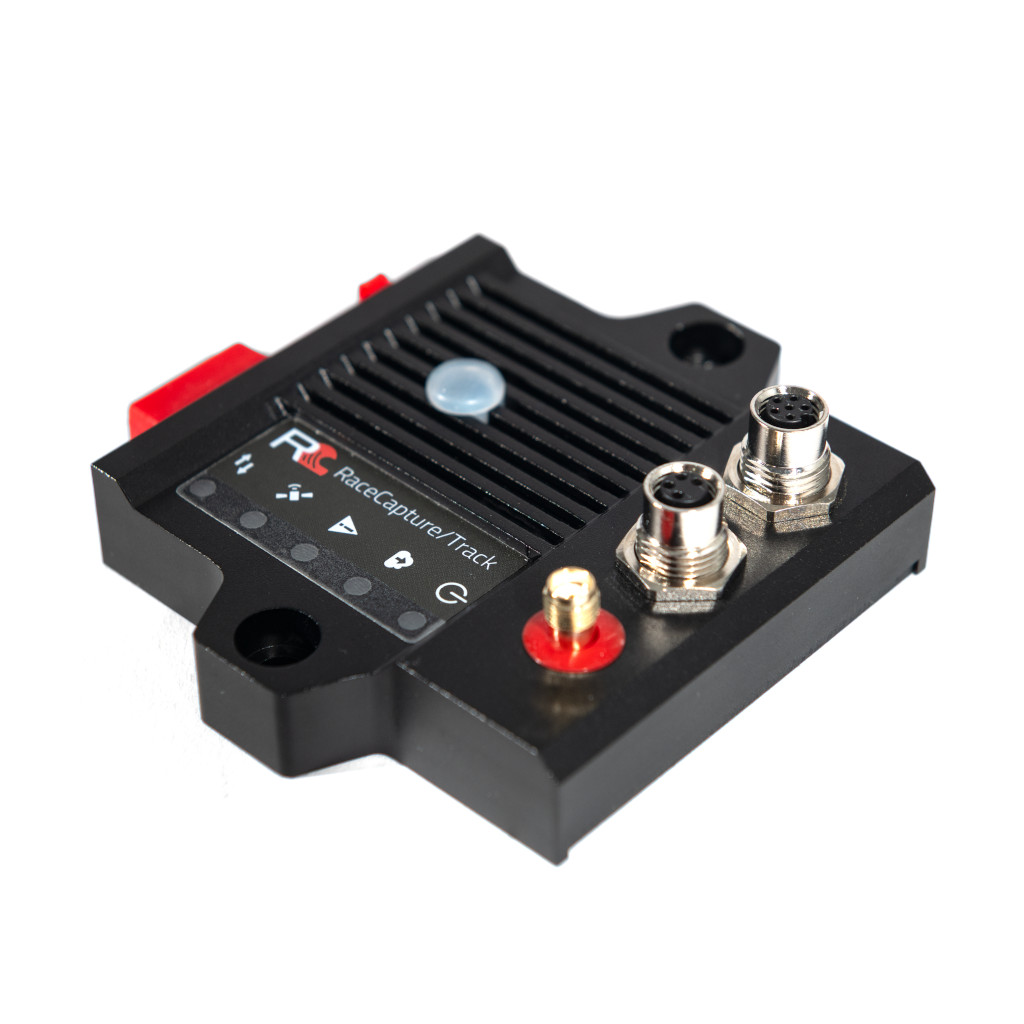
RaceCapture/Track MK4. Image: Autosport Labs, reproduced with permission; manufacturer source.
A compact motorsport logger and telemetry system for GPS-based lap analysis and vehicle data. Its manufacturer guide covers automatic recording, CAN/OBD connections, local analysis and live streaming. The RaceCapture app connects to the device for configuration and local dashboard viewing. To send live data to Podium, configure the unit for a 2.4 GHz Wi-Fi hotspot with internet access and enter a device streaming key. Wi-Fi access point mode on its own is a local connection, not an internet uplink.
RaceCapture/Pro MK4
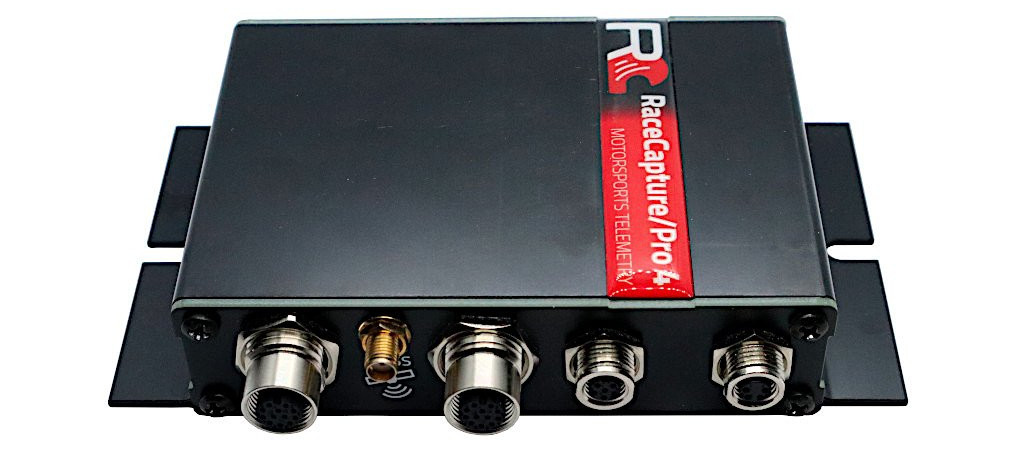
RaceCapture/Pro MK4. Image: Autosport Labs, reproduced with permission; manufacturer source.
The Pro MK4 is a more sensor-oriented logger with two CAN 2.0 buses, an external GNSS antenna, inertial sensors and microSD storage. Its specification lists eight external 0–5 V analogue inputs plus supply voltage, four digital I/O channels and four timer/RPM inputs. Wi-Fi and Bluetooth are integrated; 4G LTE telemetry is an option. Confirm the unit's fitted hardware, antenna, SIM, plan and regional network support. The documentation lists a maximum 10 Hz cellular telemetry rate, distinct from higher rates supported by sensor inputs; not every recorded channel is necessarily sent at its local rate.
PodiumConnect/Micro
PodiumConnect/Micro is designed to connect an existing data system to Podium. The manufacturer documents one CAN 2.0 bus, software-controlled termination, local recording, and streaming through a supplied-by-user Wi-Fi hotspot; it is not the same as an integrated cellular modem. Its guide provides data-system integration instructions including AiM, MoTeC and VBOX. Check the precise source device, available broadcast channels, cable, GPS data and configuration. Its stated maximum telemetry sample rate is 10 Hz, while local logging can use different rates.
PodiumConnect MK2
The PodiumConnect MK2 is a discontinued earlier interface with two CAN buses and local SD logging. The product page includes cellular specifications and compatible source examples, but its regional modem and network statements differ within the page; confirm the actual fitted variant and current network support before acquiring or using an older unit. The manufacturer suggests Micro or RaceCapture/Track as more modern alternatives.
Expansion and vehicle connections
The AnalogX sensor expander broadcasts four 0–5 V analogue inputs over CAN for a suitably configured receiving device. Raw voltage still needs appropriate scaling or calibration. Autosport Labs publishes a CAN integration guide; check the ECU protocol, bus speed, termination, power, harness, and channel mapping for the actual installation. An OBD-shaped connector or CAN-capable product does not establish that all desired channels are available.
Recording, live telemetry and analysis
RaceCapture app provides configuration, a dashboard and analysis; Podium provides online viewing and session analysis. The app guide describes uploading completed sessions and exporting plain CSV for other tools. The Track MK4 and Micro guides describe short local buffering of telemetry during network interruptions and later upload, subject to configuration. Buffer duration and software behaviour should be verified on the actual system. Distinguish a later upload from a continuous live connection.
Before a session, verify the hardware generation, GPS reception, desired ECU channels, sample rates, recording trigger, local storage, hotspot or cellular coverage, account access and service terms. Make a short test recording and compare it with the remote display. For the wider distinction between local and live systems, see In-car live telemetry and telematics and In-car datalogging and telematics.
Data-log analysis software: RaceCapture and Podium
Step-by-step: retrieve and analyse a local RaceCapture session
This example follows the RaceCapture app and Track MK4 documentation. Hardware generations, storage, connections and app versions vary; check the exact device guide. The Podium cloud workflow below is separate from offline file review.
Install and connect. Install the RaceCapture app for the supported computer or mobile device. Use the model's documented connection method and confirm that the intended channels and logging trigger are enabled.
Finish the session. Stop recording and identify whether the session was recorded in the app or on the device's storage. An app-recorded session can be selected from the app's session list.
Retrieve a device file if needed. For a Track MK4, connect by USB and, while it is not logging or broadcasting telemetry, choose Setup → Firmware → Switch to USB Drive Mode. Copy the relevant log file to the computer. App communication over USB is interrupted in this mode; follow the model guide to power-cycle the unit to return to normal operation. Other generations can differ. Track MK4 log transfer.
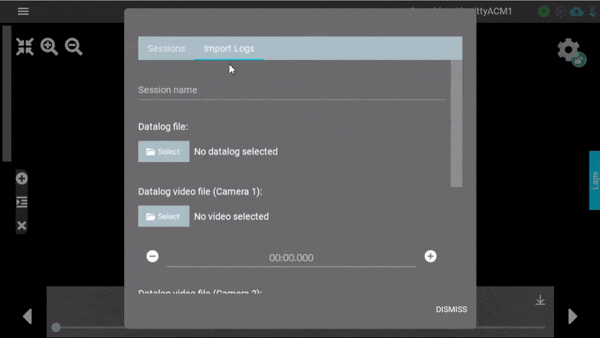
Open the session. In the app choose Analysis, then use the + control to load a saved session. To import a file, select Import Log, choose Select under Datalog file and select the copied file. Add the corresponding video file there if available. RaceCapture app guide.RaceCapture Import Logs: choose Select beside Datalog file. Still frame from the manufacturer's animated guide. Image: Autosport Labs, reproduced with permission; source and guide.
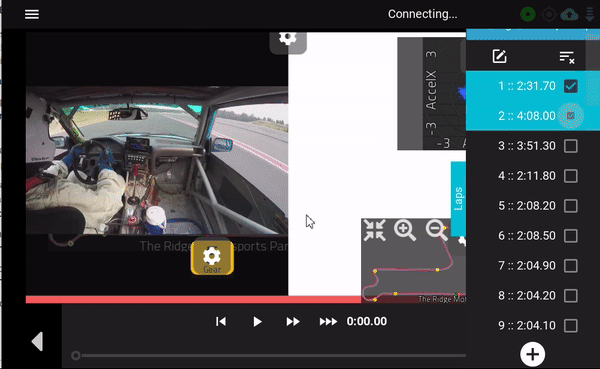
Compare laps or time data. Use the laps dropdown to select laps for comparison; the app guide describes up to four. For a stationary or dyno run without laps, select the run entry and review it against time.RaceCapture Analysis: the laps list with two laps selected. Still frame from the manufacturer's animated guide. Image: Autosport Labs, reproduced with permission; source and guide.
Inspect useful channels. Compare speed and any recorded brake, throttle or RPM channels at the same part of the track; check units and sensor values before drawing conclusions. Session logs can also be exported as CSV from the app's session list.Install and connect. Install the RaceCapture app for the supported computer or mobile device. Use the model's documented connection method and confirm that the intended channels and logging trigger are enabled.
Finish the session. Stop recording and identify whether the session was recorded in the app or on the device's storage. An app-recorded session can be selected from the app's session list.
Retrieve a device file if needed. For a Track MK4, connect by USB and, while it is not logging or broadcasting telemetry, choose Setup → Firmware → Switch to USB Drive Mode. Copy the relevant log file to the computer. App communication over USB is interrupted in this mode; follow the model guide to power-cycle the unit to return to normal operation. Other generations can differ. Track MK4 log transfer.
Open the session. In the app choose Analysis, then use the + control to load a saved session. To import a file, select Import Log, choose Select under Datalog file and select the copied file. Add the corresponding video file there if available. RaceCapture app guide.RaceCapture Import Logs: choose Select beside Datalog file. Still frame from the manufacturer's animated guide. Image: manufacturer, reproduced with permission; source and guide.
Compare laps or time data. Use the laps dropdown to select laps for comparison; the app guide describes up to four. For a stationary or dyno run without laps, select the run entry and review it against time.RaceCapture Analysis: the laps list with two laps selected. Still frame from the manufacturer's animated guide. Image: manufacturer, reproduced with permission; source and guide.
Inspect useful channels. Compare speed and any recorded brake, throttle or RPM channels at the same part of the track; check units and sensor values before drawing conclusions. Session logs can also be exported as CSV from the app's session list.
Optional: review streamed or uploaded data in Podium
Sign in to the Podium service or its app and open the relevant event and device. The device must have been configured for streaming, or the completed session uploaded, with an account and internet access.
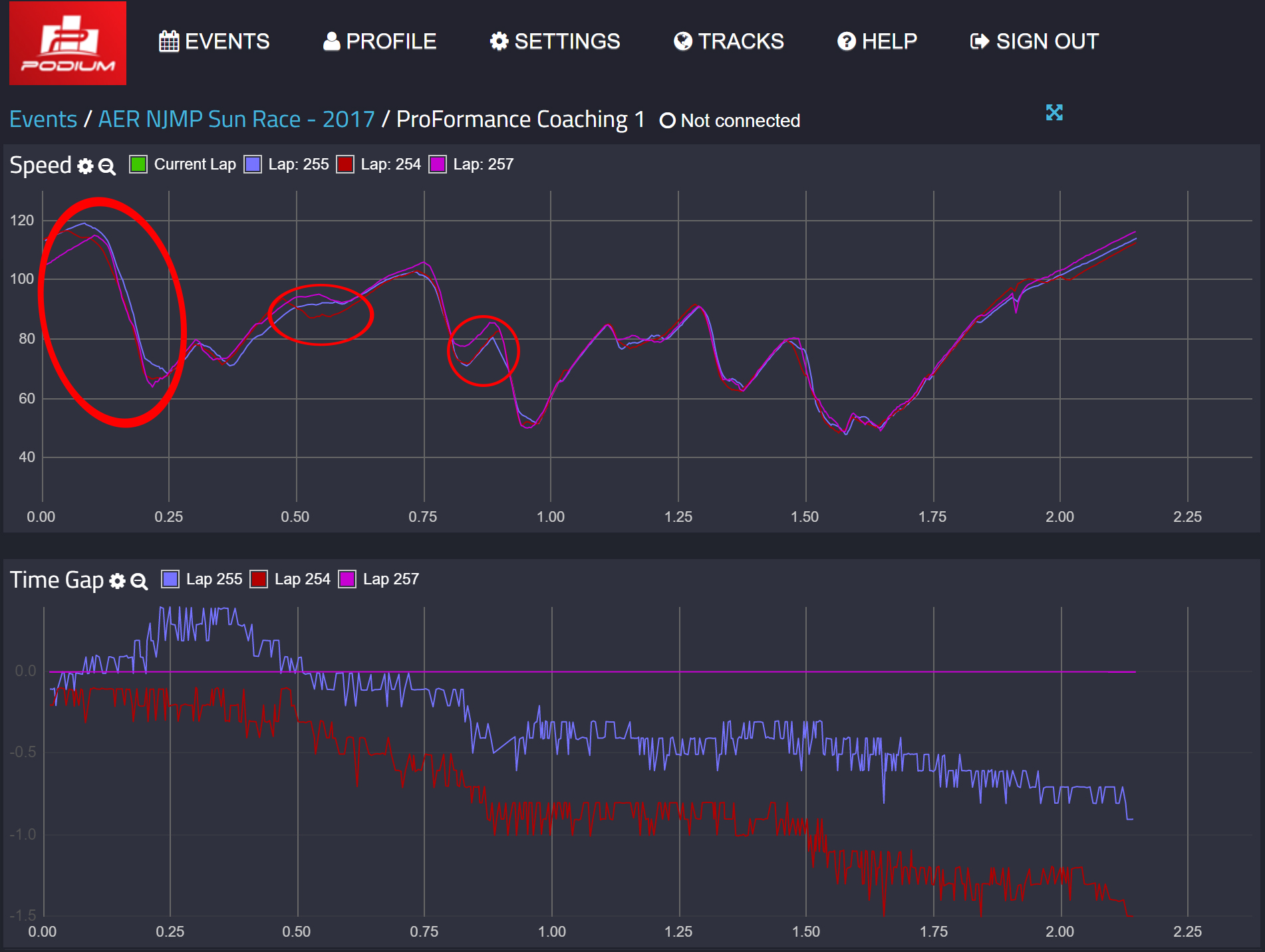
Select laps to compare. Autosport Labs says the first selected lap becomes the reference for the time-gap graph. Add speed and time-gap charts to the dashboard if needed and use distance to compare the same section of track.
Inspect where the speed and time-gap traces diverge, then check the available channel data or video for context. Local data and transmitted channels may differ.Podium speed and time-gap comparison in an earlier interface. Image: Autosport Labs, reproduced with permission; manufacturer source.Sign in to the Podium service or its app and open the relevant event and device. The device must have been configured for streaming, or the completed session uploaded, with an account and internet access.
Select laps to compare. Autosport Labs says the first selected lap becomes the reference for the time-gap graph. Add speed and time-gap charts to the dashboard if needed and use distance to compare the same section of track.
Inspect where the speed and time-gap traces diverge, then check the available channel data or video for context. Local data and transmitted channels may differ.
Source: Autosport Labs Podium driver-data guide.
Podium lap comparison showing speed traces and time gaps. Image: Autosport Labs, reproduced with permission; manufacturer image source. The image shows an earlier interface.
The RaceCapture app combines device setup, a live local dashboard and recorded-session analysis. Its analysis view can graph selected channels, compare laps within a session or across sessions at the same location, and play back a lap. It can also inspect runs without lap markers, such as a stationary test, against time. The manufacturer's app guide explains downloading, analysing and exporting sessions.
Session logs can be exported as CSV for compatible third-party tools. Autosport Labs offers the RaceCapture app downloads for supported desktop and mobile systems; the manufacturer lists Windows, macOS, Linux, Android and iOS, plus Raspberry Pi builds. Check current device and OS compatibility for the chosen release.
Podium is the online service for viewing streamed telemetry and analysing uploaded sessions. It needs an account and an internet path for live streaming; the RaceCapture local dashboard and offline log review do not by themselves provide an internet connection. Hardware, service features and subscriptions should be checked for the installation. See the Track MK4 guide for the device-to-service setup.
Pinouts and cabling
Original Tuning Wiki contact map; schematic positions are not connector-face geometry. Based on Autosport Labs' Track MK4 guide and Pro MK4 installation guide.
These are model-specific pin numbers as listed in the linked Autosport Labs documentation. The Track and Pro MK4 guides describe female M8 device connectors; the PodiumConnect/Micro pigtail guide illustrates its male plug. Consult the corresponding numbered connector drawing before wiring, identifying the exact connector and viewing direction. Confirm wire colours against the actual harness and check continuity with power disconnected.
RaceCapture/Track MK4 and Pro MK4 — M8 power and CAN
Original Tuning Wiki functional wiring illustration for MK4 four-pin M8; not a connector-face view. Source: Autosport Labs' Pro MK4 installation guide. Check the matching harness and vehicle network.
The Track MK4 guide and Pro MK4 installation guide list these assignments for their 4-pin CAN1/power and 6-pin CAN1/CAN2/power connectors. Power is specified as 9–24 V; the guides list 1 A (approximately 12 W at 12 V). Use suitable protection and verify the system’s power and connected-device requirements.
For the manufacturer's M8 four-pin pigtail, the colour legend is white CAN low, red power, green CAN high and black ground; do not generalise these colours to other cables. Autosport Labs describes an M8-to-OBD-II adapter for compatible vehicles and a six-pin to dual four-pin splitter for separating CAN1 and CAN2. The harness guide documents extensions, splitters, an inline terminator and the powered dual-CAN hub; a suitable additional power arrangement may be needed for peripherals. Confirm the actual vehicle protocol, channel mapping, supply and network termination rather than relying on the OBD socket shape.
The Pro MK4 has separate 12-pin female M12 connectors for analogue and digital/RPM sensors. The following is the manufacturer's analogue/digital mapping table; select the actual analogue or digital connector and matching harness. The source labels pin 9 “Analog/Digital B” without a further number; its mappings are shown without inventing one.
PinAnalogue mappingDigital mapping1Analogue 5GPIO 12Analogue 6GPIO 23Analogue 8GPIO 44Analogue 1Timer/RPM 15Analogue 2Timer/RPM 26Vref, 5 V at 0.5 AVref, 5 V at 0.5 A7Analogue 3Timer/RPM 38Analogue 4Timer/RPM 49Analogue 7GPIO 310GroundGround11GroundGround12GroundGround
Analogue inputs and GPIO have different operating limits and configuration; consult the installation guide before connecting a sensor. For a coil-primary RPM source, Autosport Labs recommends a CoilX buffer/filter rather than connecting the noisy high-voltage signal directly.
PodiumConnect/Micro and MK2 integration cable
For PodiumConnect/Micro and the MK2 pigtail, the manufacturer’s M8 4-pin male-plug table assigns 1 CAN low (white), 2 power (red, 9–24 V), 3 CAN high (green) and 4 ground (black). The Micro guide also describes a dedicated AiM five-pin Binder-to-M8 integration cable for the AiM Data Hub. Use the proper compatible adapter and configured CAN mapping; this is not the older MK1’s eight-position Molex connector.
CAN and antenna checks
Match the CAN bitrate and channel mapping to the ECU or data system, verify CAN high and low, and configure termination for the existing network rather than automatically adding another resistor. The manufacturer CAN integration guide describes model-specific termination. Use the correct GPS and, if fitted, cellular antenna for the device and follow its installation guide. Powered hubs, pigtails, ECU interface cables, sensors, data plans and antennas can be separate accessories depending on the kit.
Manufacturer information and product photographs
Autosport Labs product photographs and detailed documentation: RaceCapture/Track product page, RaceCapture/Pro MK4 introduction, PodiumConnect/Micro guide and AnalogX guide. Product imagery is credited to Autosport Labs.
Rendered revisions
Open each version to inspect formatting, tables and photographs.
Revision 10: Autosport Labs RaceCapture and PodiumConnect
Autosport Labs produces RaceCapture in-car data acquisition and telemetry systems and PodiumConnect interfaces for existing data systems. RaceCapture can record locally for later analysis, while supported configurations send selected channels to the Podium online service. The channels, recording and communication hardware depend on the exact model, accessories and configuration.
RaceCapture/Track MK4. Image: Autosport Labs, reproduced with permission; manufacturer source.
A compact motorsport logger and telemetry system for GPS-based lap analysis and vehicle data. Its manufacturer guide covers automatic recording, CAN/OBD connections, local analysis and live streaming. The RaceCapture app connects to the device for configuration and local dashboard viewing. To send live data to Podium, configure the unit for a 2.4 GHz Wi-Fi hotspot with internet access and enter a device streaming key. Wi-Fi access point mode on its own is a local connection, not an internet uplink.
RaceCapture/Pro MK4
RaceCapture/Pro MK4. Image: Autosport Labs, reproduced with permission; manufacturer source.
The Pro MK4 is a more sensor-oriented logger with two CAN 2.0 buses, an external GNSS antenna, inertial sensors and microSD storage. Its specification lists eight external 0–5 V analogue inputs plus supply voltage, four digital I/O channels and four timer/RPM inputs. Wi-Fi and Bluetooth are integrated; 4G LTE telemetry is an option. Confirm the unit's fitted hardware, antenna, SIM, plan and regional network support. The documentation lists a maximum 10 Hz cellular telemetry rate, distinct from higher rates supported by sensor inputs; not every recorded channel is necessarily sent at its local rate.
PodiumConnect/Micro
PodiumConnect/Micro is designed to connect an existing data system to Podium. The manufacturer documents one CAN 2.0 bus, software-controlled termination, local recording, and streaming through a supplied-by-user Wi-Fi hotspot; it is not the same as an integrated cellular modem. Its guide provides data-system integration instructions including AiM, MoTeC and VBOX. Check the precise source device, available broadcast channels, cable, GPS data and configuration. Its stated maximum telemetry sample rate is 10 Hz, while local logging can use different rates.
PodiumConnect MK2
The PodiumConnect MK2 is a discontinued earlier interface with two CAN buses and local SD logging. The product page includes cellular specifications and compatible source examples, but its regional modem and network statements differ within the page; confirm the actual fitted variant and current network support before acquiring or using an older unit. The manufacturer suggests Micro or RaceCapture/Track as more modern alternatives.
Expansion and vehicle connections
The AnalogX sensor expander broadcasts four 0–5 V analogue inputs over CAN for a suitably configured receiving device. Raw voltage still needs appropriate scaling or calibration. Autosport Labs publishes a CAN integration guide; check the ECU protocol, bus speed, termination, power, harness, and channel mapping for the actual installation. An OBD-shaped connector or CAN-capable product does not establish that all desired channels are available.
Recording, live telemetry and analysis
RaceCapture app provides configuration, a dashboard and analysis; Podium provides online viewing and session analysis. The app guide describes uploading completed sessions and exporting plain CSV for other tools. The Track MK4 and Micro guides describe short local buffering of telemetry during network interruptions and later upload, subject to configuration. Buffer duration and software behaviour should be verified on the actual system. Distinguish a later upload from a continuous live connection.
Before a session, verify the hardware generation, GPS reception, desired ECU channels, sample rates, recording trigger, local storage, hotspot or cellular coverage, account access and service terms. Make a short test recording and compare it with the remote display. For the wider distinction between local and live systems, see In-car live telemetry and telematics and In-car datalogging and telematics.
Data-log analysis software: RaceCapture and Podium
Step-by-step: retrieve and analyse a local RaceCapture session
This example follows the RaceCapture app and Track MK4 documentation. Hardware generations, storage, connections and app versions vary; check the exact device guide. The Podium cloud workflow below is separate from offline file review.
Install and connect. Install the RaceCapture app for the supported computer or mobile device. Use the model's documented connection method and confirm that the intended channels and logging trigger are enabled.
Finish the session. Stop recording and identify whether the session was recorded in the app or on the device's storage. An app-recorded session can be selected from the app's session list.
Retrieve a device file if needed. For a Track MK4, connect by USB and, while it is not logging or broadcasting telemetry, choose Setup → Firmware → Switch to USB Drive Mode. Copy the relevant log file to the computer. App communication over USB is interrupted in this mode; follow the model guide to power-cycle the unit to return to normal operation. Other generations can differ. Track MK4 log transfer.
Open the session. In the app choose Analysis, then use the + control to load a saved session. To import a file, select Import Log, choose Select under Datalog file and select the copied file. Add the corresponding video file there if available. RaceCapture app guide.RaceCapture Import Logs: choose Select beside Datalog file. Still frame from the manufacturer's animated guide. Image: manufacturer, reproduced with permission; source and guide.
Compare laps or time data. Use the laps dropdown to select laps for comparison; the app guide describes up to four. For a stationary or dyno run without laps, select the run entry and review it against time.RaceCapture Analysis: the laps list with two laps selected. Still frame from the manufacturer's animated guide. Image: manufacturer, reproduced with permission; source and guide.
Inspect useful channels. Compare speed and any recorded brake, throttle or RPM channels at the same part of the track; check units and sensor values before drawing conclusions. Session logs can also be exported as CSV from the app's session list.
Optional: review streamed or uploaded data in Podium
Sign in to the Podium service or its app and open the relevant event and device. The device must have been configured for streaming, or the completed session uploaded, with an account and internet access.
Select laps to compare. Autosport Labs says the first selected lap becomes the reference for the time-gap graph. Add speed and time-gap charts to the dashboard if needed and use distance to compare the same section of track.
Inspect where the speed and time-gap traces diverge, then check the available channel data or video for context. Local data and transmitted channels may differ.
Podium lap comparison showing speed traces and time gaps. Image: Autosport Labs, reproduced with permission; manufacturer image source. The image shows an earlier interface.
The RaceCapture app combines device setup, a live local dashboard and recorded-session analysis. Its analysis view can graph selected channels, compare laps within a session or across sessions at the same location, and play back a lap. It can also inspect runs without lap markers, such as a stationary test, against time. The manufacturer's app guide explains downloading, analysing and exporting sessions.
Session logs can be exported as CSV for compatible third-party tools. Autosport Labs offers the RaceCapture app downloads for supported desktop and mobile systems; the manufacturer lists Windows, macOS, Linux, Android and iOS, plus Raspberry Pi builds. Check current device and OS compatibility for the chosen release.
Podium is the online service for viewing streamed telemetry and analysing uploaded sessions. It needs an account and an internet path for live streaming; the RaceCapture local dashboard and offline log review do not by themselves provide an internet connection. Hardware, service features and subscriptions should be checked for the installation. See the Track MK4 guide for the device-to-service setup.
These are model-specific pin numbers as listed in the linked Autosport Labs documentation. The Track and Pro MK4 guides describe female M8 device connectors; the PodiumConnect/Micro pigtail guide illustrates its male plug. Consult the corresponding numbered connector drawing before wiring, identifying the exact connector and viewing direction. Confirm wire colours against the actual harness and check continuity with power disconnected.
RaceCapture/Track MK4 and Pro MK4 — M8 power and CAN
Original Tuning Wiki functional wiring illustration for MK4 four-pin M8; not a connector-face view. Source: Autosport Labs' Pro MK4 installation guide. Check the matching harness and vehicle network.
The Track MK4 guide and Pro MK4 installation guide list these assignments for their 4-pin CAN1/power and 6-pin CAN1/CAN2/power connectors. Power is specified as 9–24 V; the guides list 1 A (approximately 12 W at 12 V). Use suitable protection and verify the system’s power and connected-device requirements.
M8 4-pin
Function
M8 6-pin
Function
1
CAN 1 low
1
CAN 1 low
2
Power
2
CAN 2 low
3
CAN 1 high
3
CAN 2 high
4
Ground
4
Ground
—
—
5
CAN 1 high
—
—
6
Power
For the manufacturer's M8 four-pin pigtail, the colour legend is white CAN low, red power, green CAN high and black ground; do not generalise these colours to other cables. Autosport Labs describes an M8-to-OBD-II adapter for compatible vehicles and a six-pin to dual four-pin splitter for separating CAN1 and CAN2. The harness guide documents extensions, splitters, an inline terminator and the powered dual-CAN hub; a suitable additional power arrangement may be needed for peripherals. Confirm the actual vehicle protocol, channel mapping, supply and network termination rather than relying on the OBD socket shape.
The Pro MK4 has separate 12-pin female M12 connectors for analogue and digital/RPM sensors. The following is the manufacturer's analogue/digital mapping table; select the actual analogue or digital connector and matching harness. The source labels pin 9 “Analog/Digital B” without a further number; its mappings are shown without inventing one.
Pin
Analogue mapping
Digital mapping
1
Analogue 5
GPIO 1
2
Analogue 6
GPIO 2
3
Analogue 8
GPIO 4
4
Analogue 1
Timer/RPM 1
5
Analogue 2
Timer/RPM 2
6
Vref, 5 V at 0.5 A
Vref, 5 V at 0.5 A
7
Analogue 3
Timer/RPM 3
8
Analogue 4
Timer/RPM 4
9
Analogue 7
GPIO 3
10
Ground
Ground
11
Ground
Ground
12
Ground
Ground
Analogue inputs and GPIO have different operating limits and configuration; consult the installation guide before connecting a sensor. For a coil-primary RPM source, Autosport Labs recommends a CoilX buffer/filter rather than connecting the noisy high-voltage signal directly.
PodiumConnect/Micro and MK2 integration cable
For PodiumConnect/Micro and the MK2 pigtail, the manufacturer’s M8 4-pin male-plug table assigns 1 CAN low (white), 2 power (red, 9–24 V), 3 CAN high (green) and 4 ground (black). The Micro guide also describes a dedicated AiM five-pin Binder-to-M8 integration cable for the AiM Data Hub. Use the proper compatible adapter and configured CAN mapping; this is not the older MK1’s eight-position Molex connector.
CAN and antenna checks
Match the CAN bitrate and channel mapping to the ECU or data system, verify CAN high and low, and configure termination for the existing network rather than automatically adding another resistor. The manufacturer CAN integration guide describes model-specific termination. Use the correct GPS and, if fitted, cellular antenna for the device and follow its installation guide. Powered hubs, pigtails, ECU interface cables, sensors, data plans and antennas can be separate accessories depending on the kit.
Revision 12: Autosport Labs RaceCapture and PodiumConnect
Autosport Labs produces RaceCapture in-car data acquisition and telemetry systems and PodiumConnect interfaces for existing data systems. RaceCapture can record locally for later analysis, while supported configurations send selected channels to the Podium online service. The channels, recording and communication hardware depend on the exact model, accessories and configuration.
RaceCapture/Track MK4. Image: Autosport Labs, reproduced with permission; manufacturer source.
A compact motorsport logger and telemetry system for GPS-based lap analysis and vehicle data. Its manufacturer guide covers automatic recording, CAN/OBD connections, local analysis and live streaming. The RaceCapture app connects to the device for configuration and local dashboard viewing. To send live data to Podium, configure the unit for a 2.4 GHz Wi-Fi hotspot with internet access and enter a device streaming key. Wi-Fi access point mode on its own is a local connection, not an internet uplink.
RaceCapture/Pro MK4
RaceCapture/Pro MK4. Image: Autosport Labs, reproduced with permission; manufacturer source.
The Pro MK4 is a more sensor-oriented logger with two CAN 2.0 buses, an external GNSS antenna, inertial sensors and microSD storage. Its specification lists eight external 0–5 V analogue inputs plus supply voltage, four digital I/O channels and four timer/RPM inputs. Wi-Fi and Bluetooth are integrated; 4G LTE telemetry is an option. Confirm the unit's fitted hardware, antenna, SIM, plan and regional network support. The documentation lists a maximum 10 Hz cellular telemetry rate, distinct from higher rates supported by sensor inputs; not every recorded channel is necessarily sent at its local rate.
PodiumConnect/Micro
PodiumConnect/Micro is designed to connect an existing data system to Podium. The manufacturer documents one CAN 2.0 bus, software-controlled termination, local recording, and streaming through a supplied-by-user Wi-Fi hotspot; it is not the same as an integrated cellular modem. Its guide provides data-system integration instructions including AiM, MoTeC and VBOX. Check the precise source device, available broadcast channels, cable, GPS data and configuration. Its stated maximum telemetry sample rate is 10 Hz, while local logging can use different rates.
PodiumConnect MK2
The PodiumConnect MK2 is a discontinued earlier interface with two CAN buses and local SD logging. The product page includes cellular specifications and compatible source examples, but its regional modem and network statements differ within the page; confirm the actual fitted variant and current network support before acquiring or using an older unit. The manufacturer suggests Micro or RaceCapture/Track as more modern alternatives.
Expansion and vehicle connections
The AnalogX sensor expander broadcasts four 0–5 V analogue inputs over CAN for a suitably configured receiving device. Raw voltage still needs appropriate scaling or calibration. Autosport Labs publishes a CAN integration guide; check the ECU protocol, bus speed, termination, power, harness, and channel mapping for the actual installation. An OBD-shaped connector or CAN-capable product does not establish that all desired channels are available.
Recording, live telemetry and analysis
RaceCapture app provides configuration, a dashboard and analysis; Podium provides online viewing and session analysis. The app guide describes uploading completed sessions and exporting plain CSV for other tools. The Track MK4 and Micro guides describe short local buffering of telemetry during network interruptions and later upload, subject to configuration. Buffer duration and software behaviour should be verified on the actual system. Distinguish a later upload from a continuous live connection.
Before a session, verify the hardware generation, GPS reception, desired ECU channels, sample rates, recording trigger, local storage, hotspot or cellular coverage, account access and service terms. Make a short test recording and compare it with the remote display. For the wider distinction between local and live systems, see In-car live telemetry and telematics and In-car datalogging and telematics.
Data-log analysis software: RaceCapture and Podium
Step-by-step: retrieve and analyse a local RaceCapture session
This example follows the RaceCapture app and Track MK4 documentation. Hardware generations, storage, connections and app versions vary; check the exact device guide. The Podium cloud workflow below is separate from offline file review.
Install and connect. Install the RaceCapture app for the supported computer or mobile device. Use the model's documented connection method and confirm that the intended channels and logging trigger are enabled.
Finish the session. Stop recording and identify whether the session was recorded in the app or on the device's storage. An app-recorded session can be selected from the app's session list.
Retrieve a device file if needed. For a Track MK4, connect by USB and, while it is not logging or broadcasting telemetry, choose Setup → Firmware → Switch to USB Drive Mode. Copy the relevant log file to the computer. App communication over USB is interrupted in this mode; follow the model guide to power-cycle the unit to return to normal operation. Other generations can differ. Track MK4 log transfer.
Open the session. In the app choose Analysis, then use the + control to load a saved session. To import a file, select Import Log, choose Select under Datalog file and select the copied file. Add the corresponding video file there if available. RaceCapture app guide.RaceCapture Import Logs: choose Select beside Datalog file. Still frame from the manufacturer's animated guide. Image: Autosport Labs, reproduced with permission; source and guide.
Compare laps or time data. Use the laps dropdown to select laps for comparison; the app guide describes up to four. For a stationary or dyno run without laps, select the run entry and review it against time.RaceCapture Analysis: the laps list with two laps selected. Still frame from the manufacturer's animated guide. Image: Autosport Labs, reproduced with permission; source and guide.
Inspect useful channels. Compare speed and any recorded brake, throttle or RPM channels at the same part of the track; check units and sensor values before drawing conclusions. Session logs can also be exported as CSV from the app's session list.
Optional: review streamed or uploaded data in Podium
Sign in to the Podium service or its app and open the relevant event and device. The device must have been configured for streaming, or the completed session uploaded, with an account and internet access.
Select laps to compare. Autosport Labs says the first selected lap becomes the reference for the time-gap graph. Add speed and time-gap charts to the dashboard if needed and use distance to compare the same section of track.
Inspect where the speed and time-gap traces diverge, then check the available channel data or video for context. Local data and transmitted channels may differ.Podium speed and time-gap comparison in an earlier interface. Image: Autosport Labs, reproduced with permission; manufacturer source.
Podium lap comparison showing speed traces and time gaps. Image: Autosport Labs, reproduced with permission; manufacturer image source. The image shows an earlier interface.
The RaceCapture app combines device setup, a live local dashboard and recorded-session analysis. Its analysis view can graph selected channels, compare laps within a session or across sessions at the same location, and play back a lap. It can also inspect runs without lap markers, such as a stationary test, against time. The manufacturer's app guide explains downloading, analysing and exporting sessions.
Session logs can be exported as CSV for compatible third-party tools. Autosport Labs offers the RaceCapture app downloads for supported desktop and mobile systems; the manufacturer lists Windows, macOS, Linux, Android and iOS, plus Raspberry Pi builds. Check current device and OS compatibility for the chosen release.
Podium is the online service for viewing streamed telemetry and analysing uploaded sessions. It needs an account and an internet path for live streaming; the RaceCapture local dashboard and offline log review do not by themselves provide an internet connection. Hardware, service features and subscriptions should be checked for the installation. See the Track MK4 guide for the device-to-service setup.
These are model-specific pin numbers as listed in the linked Autosport Labs documentation. The Track and Pro MK4 guides describe female M8 device connectors; the PodiumConnect/Micro pigtail guide illustrates its male plug. Consult the corresponding numbered connector drawing before wiring, identifying the exact connector and viewing direction. Confirm wire colours against the actual harness and check continuity with power disconnected.
RaceCapture/Track MK4 and Pro MK4 — M8 power and CAN
Original Tuning Wiki functional wiring illustration for MK4 four-pin M8; not a connector-face view. Source: Autosport Labs' Pro MK4 installation guide. Check the matching harness and vehicle network.
The Track MK4 guide and Pro MK4 installation guide list these assignments for their 4-pin CAN1/power and 6-pin CAN1/CAN2/power connectors. Power is specified as 9–24 V; the guides list 1 A (approximately 12 W at 12 V). Use suitable protection and verify the system’s power and connected-device requirements.
M8 4-pin
Function
M8 6-pin
Function
1
CAN 1 low
1
CAN 1 low
2
Power
2
CAN 2 low
3
CAN 1 high
3
CAN 2 high
4
Ground
4
Ground
—
—
5
CAN 1 high
—
—
6
Power
For the manufacturer's M8 four-pin pigtail, the colour legend is white CAN low, red power, green CAN high and black ground; do not generalise these colours to other cables. Autosport Labs describes an M8-to-OBD-II adapter for compatible vehicles and a six-pin to dual four-pin splitter for separating CAN1 and CAN2. The harness guide documents extensions, splitters, an inline terminator and the powered dual-CAN hub; a suitable additional power arrangement may be needed for peripherals. Confirm the actual vehicle protocol, channel mapping, supply and network termination rather than relying on the OBD socket shape.
The Pro MK4 has separate 12-pin female M12 connectors for analogue and digital/RPM sensors. The following is the manufacturer's analogue/digital mapping table; select the actual analogue or digital connector and matching harness. The source labels pin 9 “Analog/Digital B” without a further number; its mappings are shown without inventing one.
Pin
Analogue mapping
Digital mapping
1
Analogue 5
GPIO 1
2
Analogue 6
GPIO 2
3
Analogue 8
GPIO 4
4
Analogue 1
Timer/RPM 1
5
Analogue 2
Timer/RPM 2
6
Vref, 5 V at 0.5 A
Vref, 5 V at 0.5 A
7
Analogue 3
Timer/RPM 3
8
Analogue 4
Timer/RPM 4
9
Analogue 7
GPIO 3
10
Ground
Ground
11
Ground
Ground
12
Ground
Ground
Analogue inputs and GPIO have different operating limits and configuration; consult the installation guide before connecting a sensor. For a coil-primary RPM source, Autosport Labs recommends a CoilX buffer/filter rather than connecting the noisy high-voltage signal directly.
PodiumConnect/Micro and MK2 integration cable
For PodiumConnect/Micro and the MK2 pigtail, the manufacturer’s M8 4-pin male-plug table assigns 1 CAN low (white), 2 power (red, 9–24 V), 3 CAN high (green) and 4 ground (black). The Micro guide also describes a dedicated AiM five-pin Binder-to-M8 integration cable for the AiM Data Hub. Use the proper compatible adapter and configured CAN mapping; this is not the older MK1’s eight-position Molex connector.
CAN and antenna checks
Match the CAN bitrate and channel mapping to the ECU or data system, verify CAN high and low, and configure termination for the existing network rather than automatically adding another resistor. The manufacturer CAN integration guide describes model-specific termination. Use the correct GPS and, if fitted, cellular antenna for the device and follow its installation guide. Powered hubs, pigtails, ECU interface cables, sensors, data plans and antennas can be separate accessories depending on the kit.