Garmin's Catalyst series is aimed at in-car driver coaching and track-session review. It combines position and vehicle-motion measurements with video to compare laps and identify driving opportunities. It is a different kind of system from an ECU or sensor-rich race engineering logger: check the particular data sources and export workflow before selecting it.
Models
Model pages: Garmin Catalyst · Garmin Catalyst 2.
Garmin Catalyst Driving Performance Optimizer
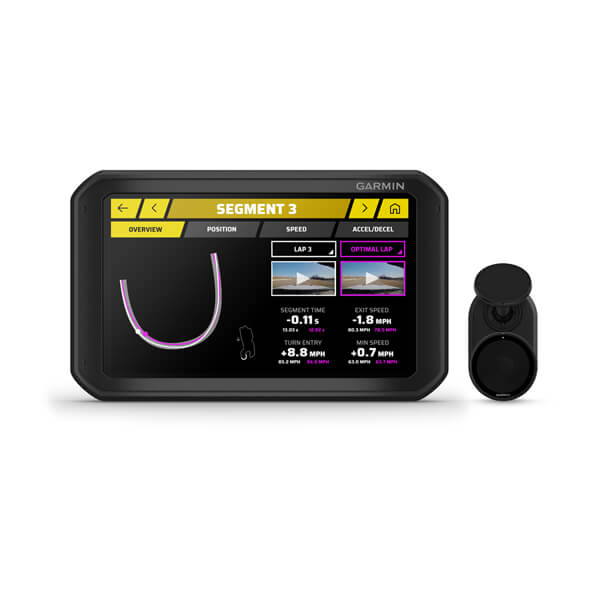
The original Catalyst uses an in-car display and a separate wired Remote Cam. It records 1080p video at 30 frames per second during a drive session. Garmin describes lap-time, segment and driving-opportunity analysis, plus real-time audible coaching. The camera needs the powered mount to record; the display's battery alone is not sufficient for a drive recording. See Garmin's Catalyst introduction, video specifications and power guidance.
Garmin Catalyst 2
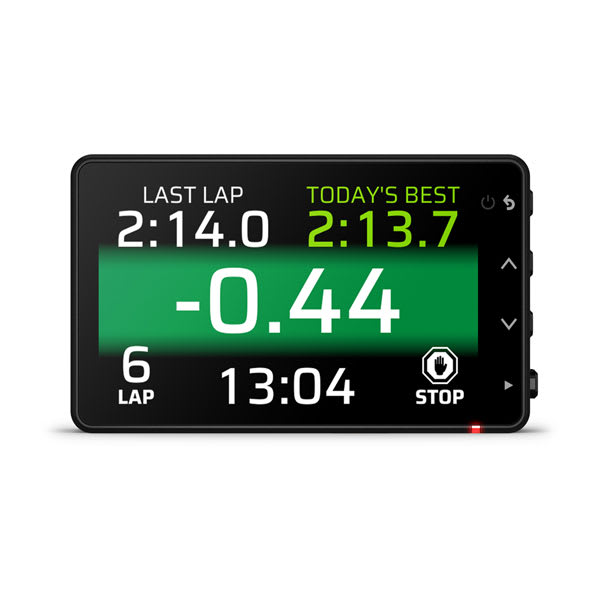
The Catalyst 2 combines a 3-inch display and camera in one unit. Garmin specifies 1440p video at 30 frames per second, a 25 Hz multi-GNSS receiver, accelerometers, gyroscopes and image processing. It supplies lap timing, audio coaching and post-session comparisons. Video records to a compatible microSD card; battery operation is supported, although Garmin recommends vehicle power to avoid interruption. See the Catalyst 2 announcement and product photographs, positioning explanation, video recording specifications and power guidance.
Recorded data, video and software
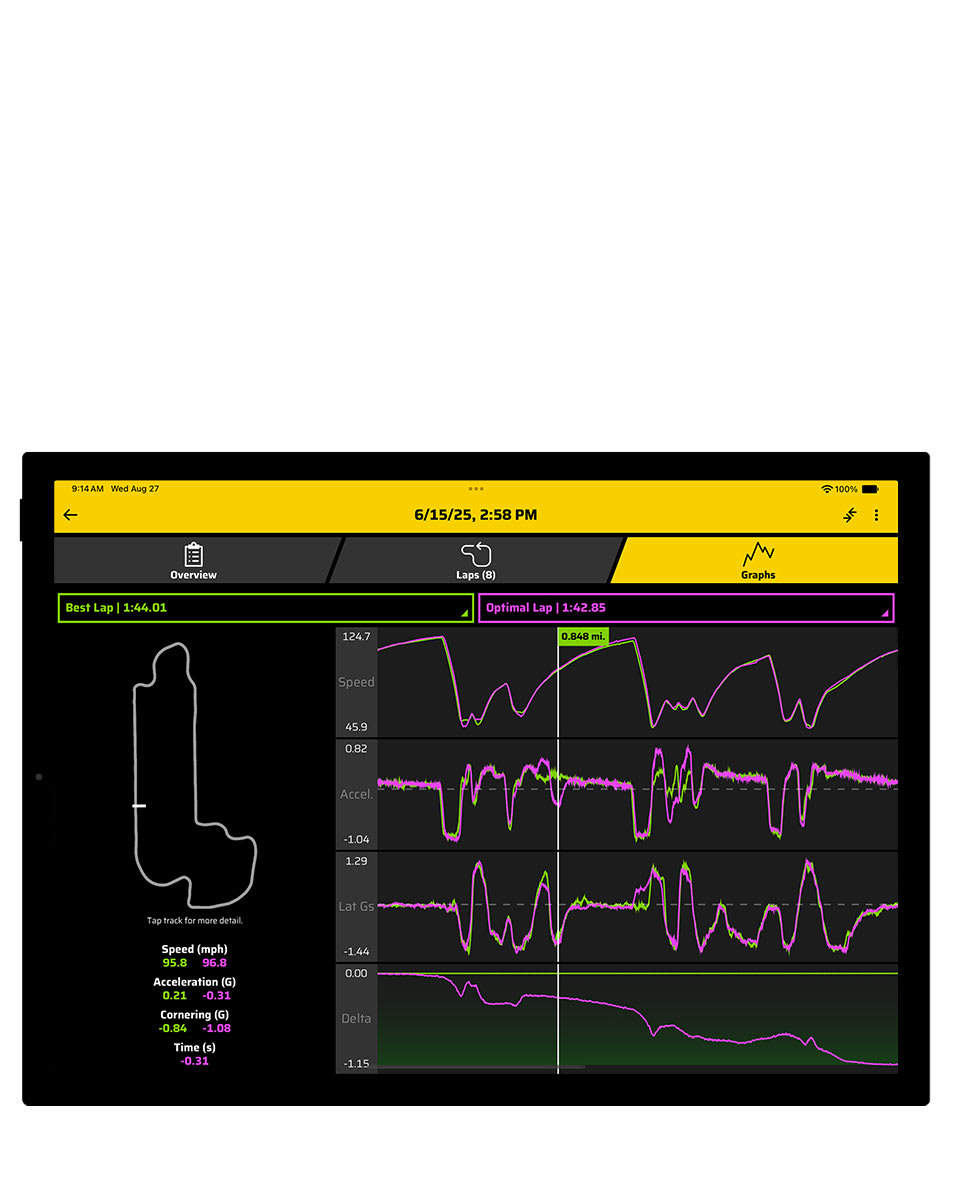
Garmin's True Track Positioning combines GNSS, inertial measurement and image processing to estimate the car's track position. True Optimal Lap combines achievable segments from the driver's recorded lines; it is a coaching comparison rather than a guarantee of a future lap. The Catalyst 2 app guide describes transferring session information via Bluetooth and video via a direct Wi-Fi connection. The app allows review of lap data, graphs, video and coaching opportunities.
For the original Catalyst, Garmin says selected session data can sync to the app but session data cannot be imported or exported as CSV or VBO. Videos, including saved videos with data overlays, can be transferred separately. These statements apply to the original device in the cited support articles; check the current Catalyst 2 app and documentation before assuming the same export limitations for that model. Sources: original Catalyst session data and video transfer.
Analysis software and workflow

Original Catalyst: use the device's Review screen to select the track and a session, then examine the session summary, laps, track segments, driving opportunities and recorded video. A recorded video can be saved to the memory card with data overlays. Some session data also syncs to the Garmin Catalyst mobile app; Garmin says the original unit does not export session data as CSV or VBO. See Garmin's session review instructions and session data limitations.
Catalyst 2: pair the device with the Garmin Catalyst app on a compatible iOS or Android phone or tablet. The app is required to view its recorded video and detailed performance data; import the completed session, then review lap times, graphs, summaries, comparisons and coaching opportunities. Garmin describes Bluetooth for session information and direct Wi-Fi for video. See Garmin's app compatibility page for current operating-system requirements.
To save Catalyst 2 video with data overlays, use the connected mobile app; when viewing videos on a computer from the device or memory card, Garmin says the raw footage does not include those overlays. Optional Garmin Vault cloud storage and sharing require a paid subscription and are not available in every country. Computer video transfer instructions.
ECU data and remote telemetry
Garmin states that the original Catalyst does not retrieve OBD-II vehicle data. Do not assume either Catalyst model provides configurable ECU CAN logging, external engineering sensor inputs or a live pit-wall telemetry service from its wireless connection: verify the exact model and current Garmin documentation if those functions are required. Bluetooth or Wi-Fi used for audio and transferring sessions is not evidence of live remote monitoring. See Garmin's OBD-II support answer and the Catalyst 2 app guide.
Installation and use
Follow Garmin's mounting, alignment, camera, memory-card and power instructions and the organiser's vehicle rules. Do not operate or review sessions while driving. Garmin describes these as closed-circuit driving products; check the track type and the installed software's features. Catalyst 2 software updates can change supported functions; Garmin's release notes record drag-race session support added in version 3.20.
For broader equipment types see In-car datalogging and telematics and In-car live telemetry and telematics. Product photographs on the linked Garmin pages are credited to Garmin.
Connections, power and cabling

Original Garmin Catalyst
The original Catalyst uses a powered magnetic mount and a separate Remote Cam. Garmin identifies a micro-USB power/data port and a 14-contact magnetic mount interface on the display, but its device overview does not provide a numbered pin assignment for the mount. Use the intended mount and Garmin cable; do not infer a CAN or ECU pinout from those contacts.
The Remote Cam installation guide connects the camera's micro-USB port to the USB port on the magnetic mount with the supplied long camera cable. The mount receives power via the specified power cable and vehicle adapter. Garmin distinguishes these from the shorter computer connection cable in its Catalyst cable guide.
For the original Catalyst bare-wire power adapter, Garmin's bare-wire instructions specify red as 10–30 V DC system input and black as system ground. These colours apply to that Garmin adapter, not every USB cable. Follow Garmin's wiring and mounting instructions and use the correct fused adapter; Garmin recommends installation by an experienced installer.
Garmin Catalyst 2
Catalyst 2 has a different integrated-camera layout. Its installation guide specifies the camera's USB-C power port, the supplied cable and included vehicle power adapter. Garmin advises against relying on a vehicle USB port, which may not supply enough power. The power cable specifications list the supplied adapter as 12–24 V DC input and approximately 5 V USB output. Do not connect vehicle voltage directly to a USB port.
Neither connector layout establishes an engine-ECU or CAN pinout. Use the documented accessories for the exact generation, route cables clear of controls and airbags, and check Garmin's current installation guide.