WinOLS 5 is EVC electronic’s Windows editor for ECU memory files. It helps you find calibration data, describe the underlying bytes as readable maps, and edit a working version while keeping the original available for comparison. This walkthrough starts with a file you already have and ends with an exported file. For supported hardware, licensing and related features, see the WinOLS reference page. EVC software overview
1. Import the original
Choose Project → New, then Project → Ex- & Import → Import file (Ctrl+I). Choose the format that matches the file and select it. WinOLS stores the first imported data as Original and uses it as the default baseline for later comparisons. Keep the untouched source file separately and record the ECU hardware and software identifiers, how the file was obtained and what memory region the read covers. Save the project with Ctrl+S. A project holds the source data, working versions, map definitions and notes together. EVC manual, §§1.7 and 2.1
2. Inspect the data and find a candidate map
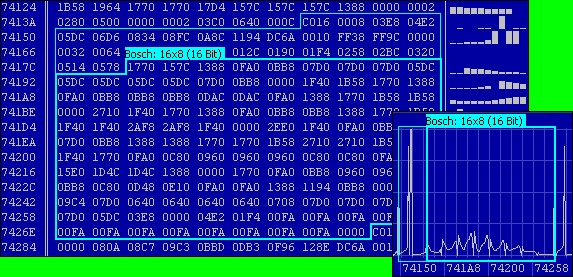
Open the hexdump and look for Potential maps in the sidebar after the background search finishes. WinOLS marks regions that look like tables. Start in Text to read the numbers and addresses, use 2D to see repeating shapes and row transitions, and use the 3D view or preview to inspect the overall surface. These views show the same underlying values. A regular shape helps you check the layout. Identifying what the table controls requires evidence for that ECU software. EVC manual, §§2.2–2.4 · EVC’s illustrated 2D walkthrough
3. Define the map and check its meaning
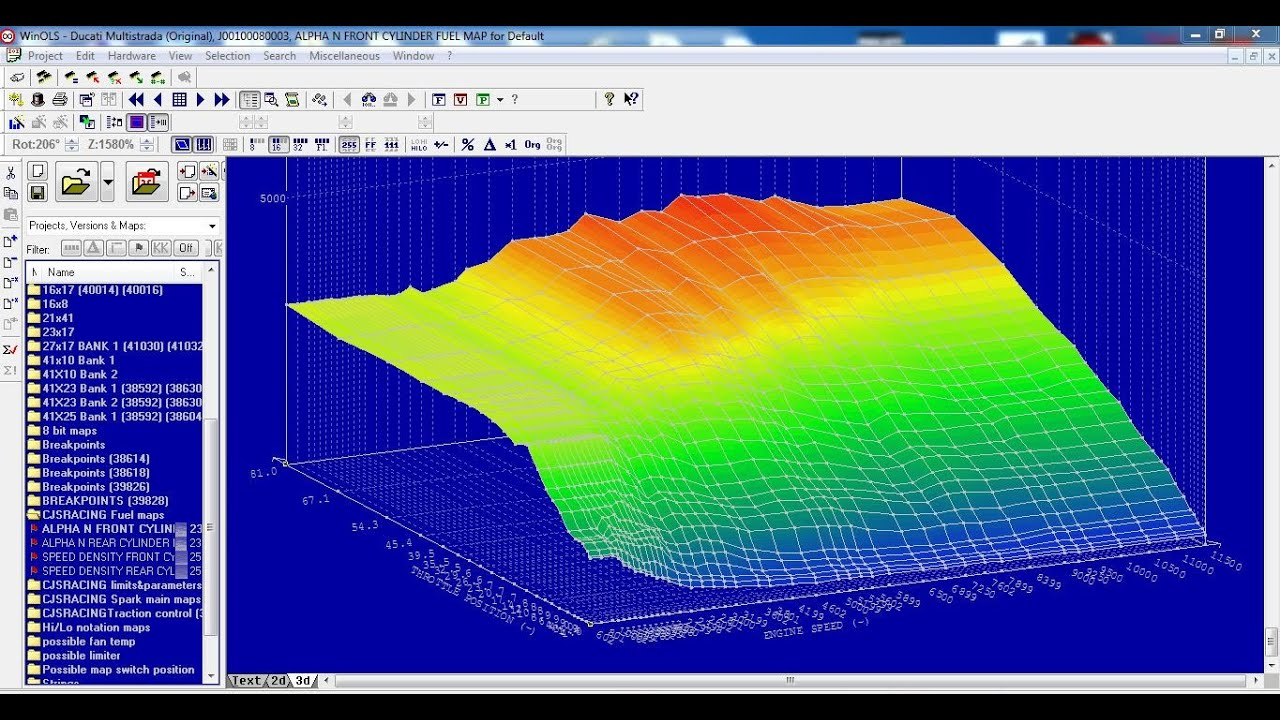
A map is a lookup table. Its axes describe the inputs, such as engine speed and load. Its cells contain the values the ECU uses. A WinOLS map definition tells the editor where to start reading, how many rows and columns to display, how to interpret each stored value and how to label and scale the axes and cells.
If working from the hexdump, align the rows, select the candidate and use K to create a map from the selection. In the map window, open Properties with Alt+Enter. Verify the start address, dimensions, value width, signedness and byte order. Check the axis breakpoints, units and conversion formula against a definition or other evidence for the exact software. A matching map pack or DAMOS/A2L file can supply map properties. EVC’s OLS521 plug-in imports DAMOS/A2L definitions. Keep unconfirmed tables labelled as candidates. EVC manual, §2.3 · Map properties, §5.25 · EVC’s DAMOS/A2L importer
4. Edit a working version and compare it
Open the version dialog with Ctrl+Shift+O, duplicate Original and give the copy a name that describes the change. Open the copy and edit the intended cell in the defined map. Enter opens direct entry and a second Enter confirms it. Save and use View → Differences (U) to review the change against Original. Inspect the hexdump too so the review includes changes outside the map you edited. Record which map and cells changed and why. EVC manual, §4.3 · Changing maps, §2.10 · Differences, §7.13
Practice example. In a synthetic table where cells are unsigned 16-bit values in high-byte-first order and the scale factor is 0.1 with zero offset, a raw value of 1200 appears as 120.0. Entering 125.0 stores 1250. At that cell, the bytes change from 04 B0 to 04 E2. The expected difference is one displayed cell and one underlying byte. These are made-up values for practising the comparison.
5. Check the checksum and export the file
Confirm which tool handles checksum correction for the exact file and programming workflow. In WinOLS, Edit → Checksum (F2) opens the checksum dialog. A matching licensed module can correct the areas it supports. Some modules require untouched ECU data in Original. Correction updates the stored checksum for the covered data. A passing checksum tells you about file integrity. Calibration behaviour is assessed through ECU-specific testing. EVC manual, §2.11 · ECU checksum workflow
With the intended working version active, choose Project → Ex- & Import → Export file (Ctrl+E). Select the file format and memory element required by the programming tool, then export under a new filename. Recheck the file’s identity, size and coverage against the expected read or tool format. For directly comparable binary files, check that the output contains only the intended edits and any expected checksum changes. Keep the exported file with the project and change notes. The programming step follows the procedure for the specific ECU and interface. EVC manual, §4.12.2 · How an ECU is remapped