WinOLS is EVC electronic’s Windows software for analysing and editing the memory contents of engine and other control units. It combines a raw data view with tools for locating calibration tables, defining maps and working on several versions of a file. It is aimed at users who want to inspect both identified maps and the surrounding binary data.

Versions and compatibility
The current major generation is WinOLS 5. As of 10 November 2026, EVC lists version 5.96, released 29 October 2026, for 64-bit Windows 10 and Windows 11. EVC also lists the older WinOLS 4.82 and a separate WinOLS 5 demo; the demo may have a different version number from the full release. Check EVC’s downloads and change log for the latest release and system requirements.
WinOLS 5 projects created or modified in that generation cannot be opened in WinOLS 4. Keep a backup before migrating projects, and check workstation and plug-in compatibility when upgrading. EVC: WinOLS software
Maps and data views
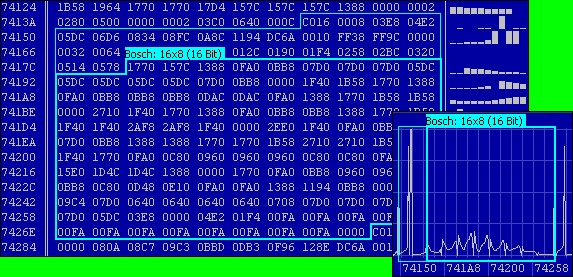
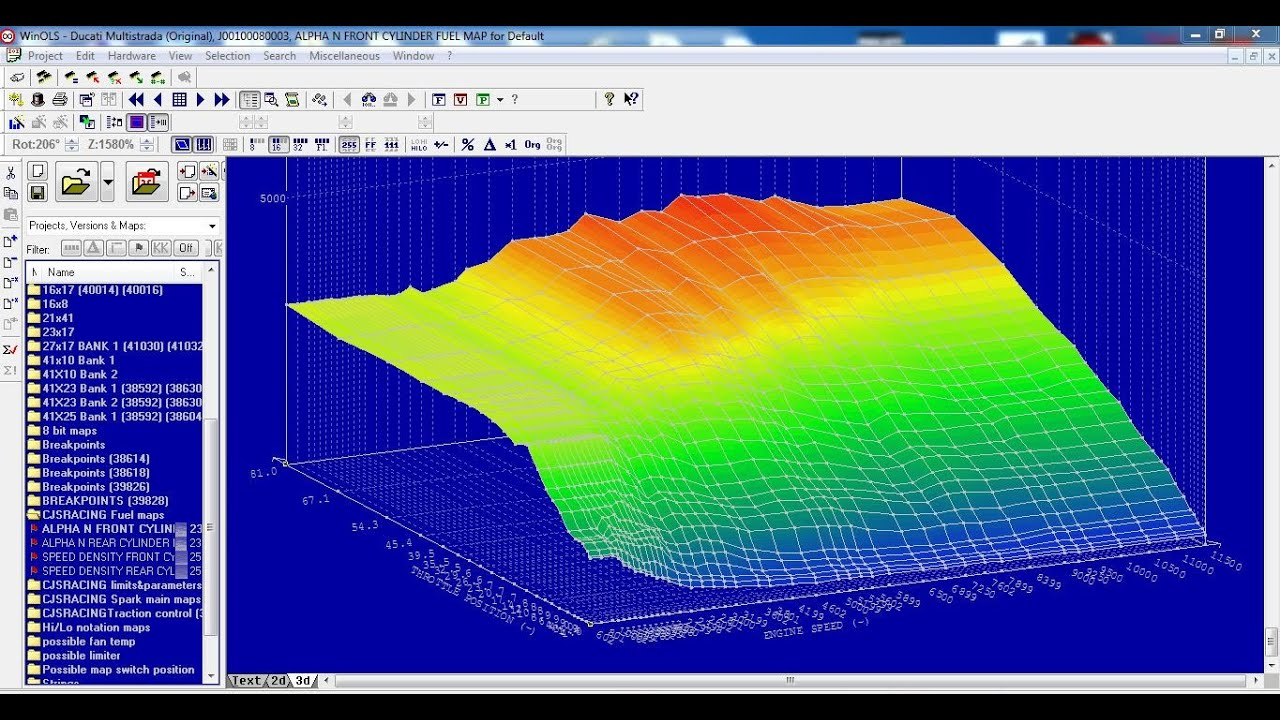
WinOLS can search for possible maps and show the results in a project map list and in the underlying data. A map may be viewed as a table, a 2D graph or a 3D surface; the hex/decimal view remains useful for examining bytes and adjacent areas. Search results are candidates, so their address, dimensions, byte order, axes and scaling still need to be checked against the specific ECU software.
Map packs and imported definitions can supply names and structure. EVC documents several ways to reuse map information and compare changes between related projects, but a similar-looking file is not proof that its maps have identical addresses or meanings.
Projects, checksums and equipment
WinOLS organises work in projects with an original file and named or commented versions. This is useful when comparing an edit with its starting point or returning to an earlier stage. EVC lists plug-ins for checksum correction and for additional import functions; support depends on the ECU, plug-in and licence. EVC also lists supported programming hardware, but file editing by itself does not establish a read/write procedure for a particular ECU.
Before choosing it
- Check the base licence, premium features and plug-ins needed for the exact task.
- Check definition availability and compatibility with the ECU’s hardware and software numbers.
- Confirm whether the editor, a plug-in or the programming tool will handle all checksums.
Typical workflow
- Keep the original read. Create a project from the file and record the ECU hardware and software identifiers, read method and file provenance. Keep a separate, unmodified backup outside the project.
- Inspect candidates. After import, WinOLS searches in the background. Open “potential maps” in the project list and inspect a candidate in the data and preview. EVC describes using the P key for the preview and F to move to the next detected candidate. A plausible shape alone does not establish a map’s function. EVC: automatic map search
- Define and verify. Check the start address, dimensions, data width, signedness, byte order, axes, conversion factors and units against reliable information for that exact software. Give confirmed maps meaningful names and document uncertainty.
- Edit a version and compare. Make a named, commented version, review changed cells and surrounding data against the original, and retain a record of the intended change. EVC says a project can hold up to 200 versions of an original file. EVC: software overview
- Check and export. Confirm checksum coverage for the exact file and the intended programming tool, export the correct file format, and validate the result using an appropriate read/write and verification process for the ECU.
Understanding the views
The text or hex view provides the underlying data and context around a selection. The 2D view is useful for examining sequences and transitions, while a 3D surface or preview can help reveal table-like patterns. A smooth surface is a visual clue, not evidence of a particular physical quantity. EVC also offers a Slices display, which places lines at the same height for comparison; EVC identifies this as a paid annual feature. See EVC’s illustrated examples of the hexdump, preview, overview and checksum window.
Finding and defining a map manually
EVC’s illustrated text-view walkthrough shows the same candidate before and after changing the column count, aligning the origin and selecting the data. Its 2D walkthrough shows the equivalent steps as a graph. These are examples of inspecting layout, not a way to identify a map’s purpose on their own.
- Choose a data width and byte order appropriate to the file, then inspect the data in text or 2D. Do not assume that one setting applies to every area of an ECU file.
- Adjust the displayed column count with M and W. EVC’s example aligns recurring row transitions; in 2D the displayed line breaks can help show that alignment.
- Move the displayed origin with Ctrl and the left or right arrow, then select the candidate’s boundaries. Revisit the column count if the alignment still looks wrong.
- Inspect the selection in the preview. EVC describes using Selection → Selection → Map (K) to create a map from a selection, and a map-selection assistant that can help adjust the selection. Verify the result and exclude unrelated data before editing.
These controls and shortcuts follow EVC’s examples and may vary with version or configuration. Confirm data width, byte order, dimensions, axes and conversions from evidence for the specific software before assigning a name or changing values.
Reading the preview
EVC’s illustrated preview guide compares several useful cases: an oversized selection can make the desired surface appear small; an incorrect column count can produce repeated discontinuities; and a misplaced start can introduce a jump even when the width is plausible. Change one setting at a time and compare the preview with the raw values. A smooth-looking surface is still only a candidate, not proof of a map’s identity, units or scaling.
Editing a defined map
EVC explains that working in a defined map keeps the selected table organised and limits editing to its boundaries. In its documented example, + and − adjust the current value or selected cells, Enter accepts a typed value, and F11 restores original values. Check the active selection and displayed units before making a change, then compare with the original version. See EVC’s map-editing FAQ.
Reusing work across files
EVC lists import changes, connected windows and reference versions, map import, map packs and scripts as ways to reuse information from earlier projects. A map pack carries map structure for import; scripts can transfer structure and/or values. The appropriate method depends on whether the aim is to reuse definitions or actual changes. Verify any transferred addresses, axes, scaling and values against the destination file; software revisions can differ. EVC: importing data from older projects
Checksums and file formats
WinOLS supports binary, Intel HEX and Motorola HEX import and export, among other formats. A project contains additional working information and is distinct from the ECU file exported for programming. EVC notes that projects created or modified in WinOLS 5 cannot be opened in WinOLS 4. EVC: software overview
In EVC’s documented checksum workflow, Edit → Checksum (F2) opens the checksum dialog. A matching, separately purchased module can find and correct supported checksums; EVC’s online search can identify a matching module by uploading the project to its server. Some modules require an unmodified original in the project. A checksum result alone does not establish that a calibration is correct or that every protection mechanism has been handled. EVC: checksum FAQ
Licensing and learning
The base application, premium features, checksum and import plug-ins can have different licensing requirements. Check current availability and compatibility with EVC before purchasing. EVC provides a demonstration download, documentation and a change log on its WinOLS download page; its FAQ covers common tasks.