VBOX Video HD2 combines two camera inputs, GNSS data and configurable vehicle data for circuit review. HDMI and GNSS capability varies by hardware generation.
Specifications
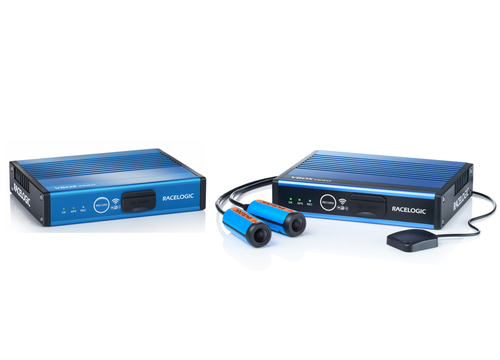
HD2 accepts two camera inputs and synchronises 1080p30 video with position and vehicle data; the current 25 Hz version supports a customisable overlay and up to 80 CAN channels. The optional OLED display provides predictive lap timing. HDMI is provided on the HDMI variant. Older versions of HD2 used 10 Hz GNSS; identify the hardware version and consult the appropriate manual and datasheet rather than assuming all units have 25 Hz or HDMI. [3] [4] [5]
For the HDMI variant, transmitting video requires a separate streaming encoder and a suitable network service. See the HD2 product information.
Connectors and wiring

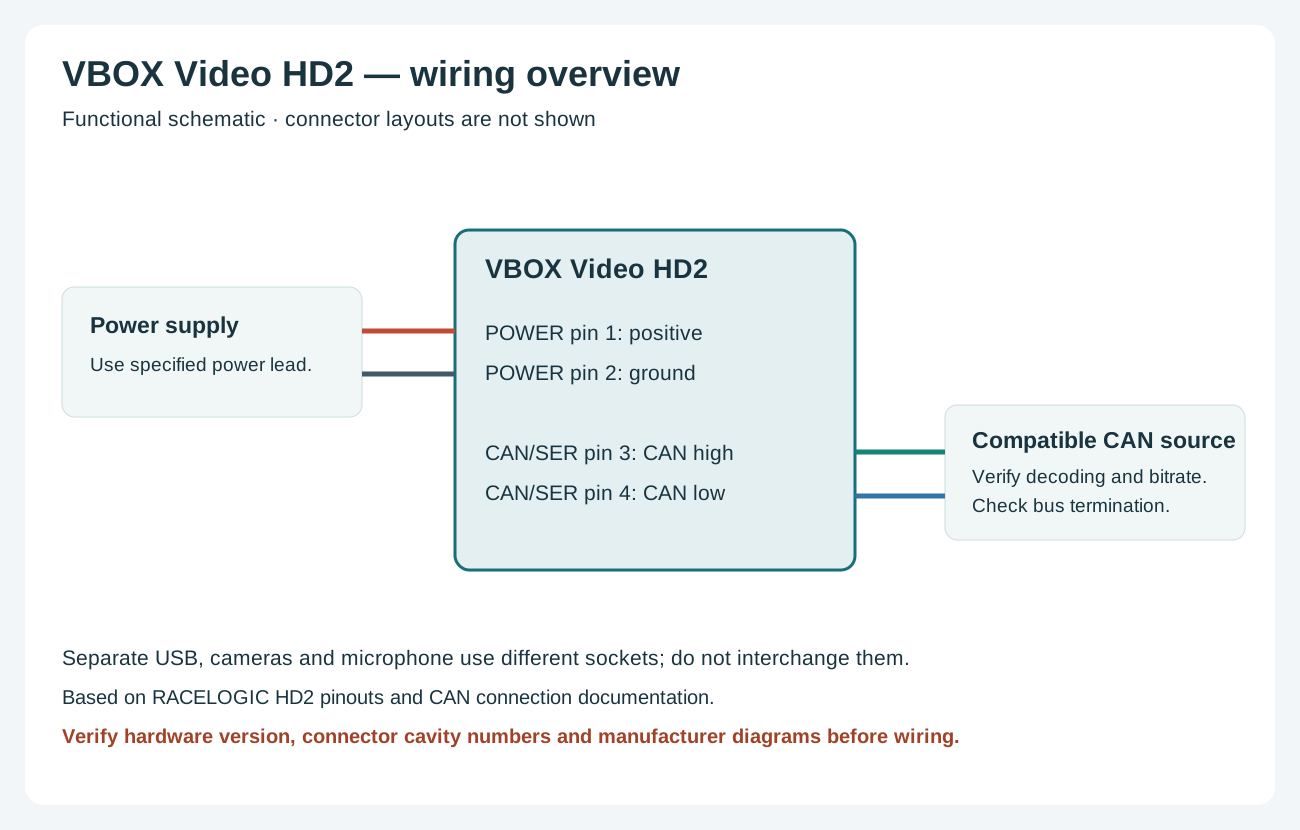
The HD2 pinout and rear-panel drawing shows separate LEMO connectors. Its two-pin POWER connector has pin 1 power positive and pin 2 ground; chassis is ground. The five-pin CAN/SER connector is a different socket from the five-pin USB connector.
| Pin | HD2 five-pin CAN/SER function |
|---|---|
| 1 | RS232 TX |
| 2 | RS232 RX |
| 3 | CAN high |
| 4 | CAN low |
| 5 | +V power output |
For completeness, the separate five-pin HD2 USB connector is documented as 1 USB ID, 2 DP, 3 ground, 4 USB 5 V and 5 DM. The two nine-pin camera connectors and four-pin microphone are also shown in the manufacturer’s pinout. Do not assume any HD1, HD Lite or vehicle connector has the HD2 assignment.
RACELOGIC’s HD2 CAN connection guide identifies RLCAB069L for OBD-II, RLCAB015L for bare-wire CAN and RLACS182L for clipping onto a CAN pair; check compatibility with the hardware generation and display arrangement. A physical OBD-II connection does not prove that the desired ECU channels are available: configure the correct CAN bitrate and channel decoding for the vehicle.
Consult the linked manufacturer drawings for connector face and orientation, verify the actual hardware and cable before connection, and check the ECU protocol, CAN bitrate and the vehicle's available data. Related: RACELOGIC VBOX manufacturer guide.
Data analysis software
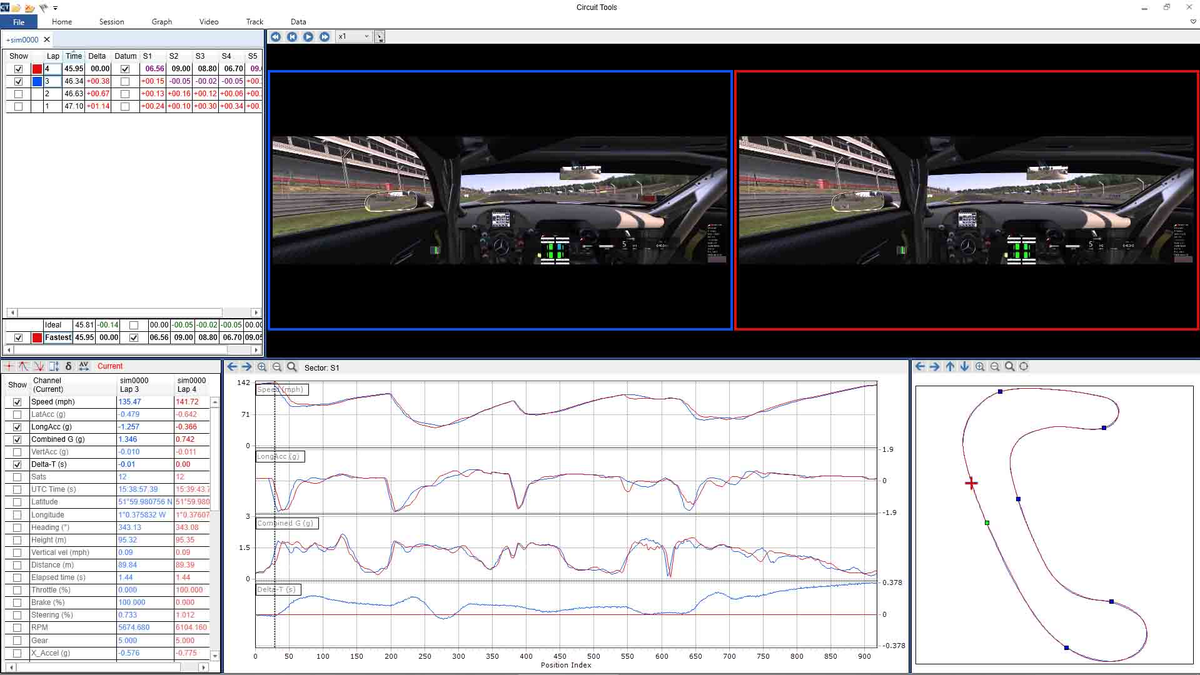
Copy the recorded data and associated video to a computer and open the session in Circuit Tools to compare laps, traces and synchronised video. The manufacturer lists Circuit Tools for analysis of this product. Manufacturer product documentation.
Download Circuit Tools from RACELOGIC. The manufacturer offers Windows, macOS and iOS editions; check the product, file and operating-system compatibility for the edition used. See the RACELOGIC manufacturer guide for analysis workflow and edition differences.