Examiner is a Fiat Group manufacturer diagnostic system used on Fiat, Alfa Romeo and Lancia vehicles. The Examiner Smart and Smart HD are workshop diagnostic tablets supplied and supported by Actia; Fiat later provided an Examiner Emulator in the wiTECHPlus environment for some vehicles and procedures. Coverage depends on the vehicle, software and interface. A 2003 Fiat–Lancia–Alfa Romeo Examiner appears in an Italian defence equipment inventory. Fiat Group Automobiles UK, Examiner Information Booklet, section 3; Fiat campaign 5793, 2014.
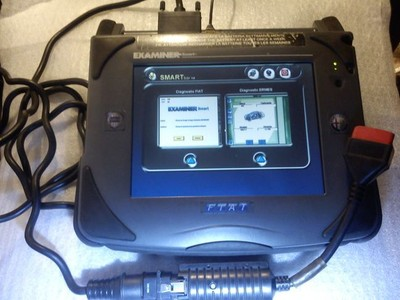
Examiner Smart and Smart HD
The UK booklet describes the Smart HD as the main unit for interrogating Fiat and Alfa Romeo onboard systems and states that the HD upgrade was introduced in September 2006. Its comparison lists the following configurations; these are historical specifications for the units described in the booklet, not a guarantee that every second-hand machine retains the same components. Fiat/Actia Examiner Information Booklet, section 3.
| Specification | Examiner Smart | Examiner Smart HD |
|---|---|---|
| Processor | Celeron 400 MHz | Celeron Mobile 1 GHz |
| Hard drive | 20 GB | 60 GB |
| Memory | 128 MB RAM | 512 MB RAM |
| Stated battery operation | Up to 1 hour | Up to 3 hours |
| Optical drive | CD, no DVD | DVD |
| USB | One USB 1.1 port | Two USB 2.0 ports |
| Adapter cord | A16, green | A16HS, red |
Examiner SAM (Actia ACD5000S) is a separate measurement module. Connected to the Smart, it adds voltage, resistance, current and pressure measurement with the appropriate leads or sensors. The booklet also lists breakout boxes, test resistors, a coil tester and current, temperature and pressure accessories as separate kits; their presence should not be assumed when buying a used tablet. Fiat/Actia booklet, equipment guide.
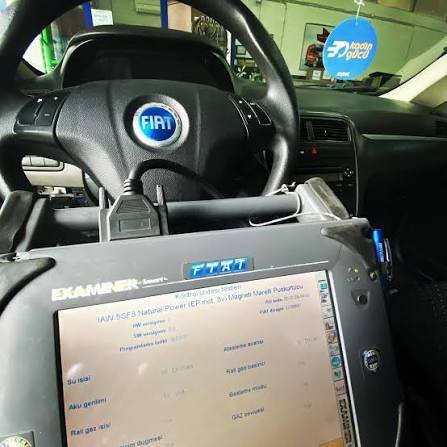
Diagnostic functions
The operator selects the vehicle make, model and version, then the control-unit group and system. Depending on the selected vehicle, control unit and software release, the control-unit test can display operating parameters, read and clear recorded errors, show available error details, run active component tests, and offer configuration or reset procedures. Fiat's training material describes these menus and also shows function-based views of relevant nodes. Fiat Group Automobiles Spain Examiner training, slides 43–58.

Some supported service operations involve ECU software updates. Fiat's training material describes a control-unit programming function using Fiat CD FLASH data, while a Fiat Chrysler service document describes PCM reprogramming with Examiner Emulator and Web Flash in wiTECHPlus. These are manufacturer service updates; the presence of a programming menu does not by itself establish a tool's ability to edit or tune a calibration. Follow the procedure for the exact vehicle, use the specified software and maintain the required vehicle power supply during programming. Fiat Examiner training, slide 63; Fiat Chrysler service document.

Examiner Emulator and wiTECH
Fiat used Examiner Emulator with wiTECHPlus. A 2011 Fiat campaign identifies “Examiner or Witech+ (Examiner Emulator)” for a Ducato FL software update. A 2014 campaign explicitly specifies Examiner Emulator within wiTECHPlus for certain Fiat 500 1.2 Euro 6 self-learning procedures. This is historical evidence of particular applications, not a promise that the same procedures or entitlement are available today. Fiat campaign 5609, 2011; Fiat campaign 5793, 2014.
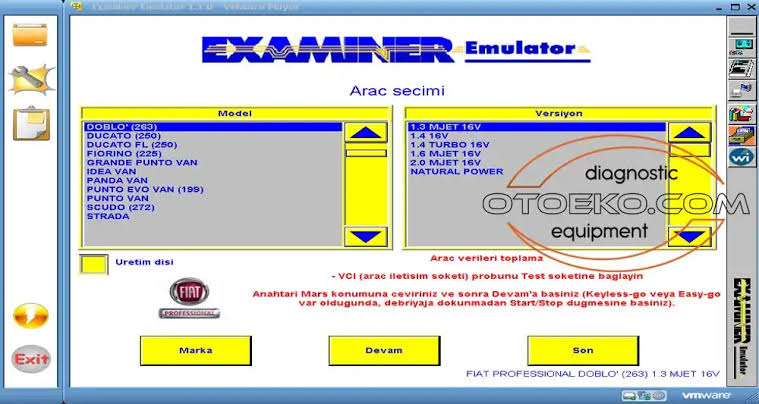
FCA's 2018 guidance said that legacy emulators would remain available in wiTECH 1.0 and wiTECHPlus for legacy vehicles. Stellantis's Technical Information portal describes its current Examiner Emulator packages for vehicles manufactured before 2011 and says those packages require the Stellantis proprietary tool. Alfa Romeo also describes emulated Examiner for older vehicles, including early Euro 5 and earlier. The historical 2014 campaign and the present package description address different periods and must not be treated as one universal cut-off. Confirm the exact VIN, market, function, software version and current subscription entitlement. FCA legacy emulator guidance, 2018; Stellantis Technical Information, section 23; Alfa Romeo technical information.
Interface compatibility: check before registering a pod
The wiTECH knowledge base's 2024 device list states that the Examiner Emulator uses a USB connection only and supports the following interfaces. This is the manufacturer's list for the official emulator, not a general compatibility claim for third-party interfaces. wiTECH Examiner Emulator device list.
| Interface | Examiner Emulator | wiTECH 2.0 |
|---|---|---|
| VCI Pod | Supported | Not supported |
| microPod II | Supported only if not registered with wiTECH 2.0 | Registration with wiTECH 2.0 required |
| Mopar Diagnostic Pod | Supported only if not registered with wiTECH 2.0 | Registration with wiTECH 2.0 required |
Important: the same knowledge-base article says a microPod II or Mopar Diagnostic Pod becomes incompatible with Examiner Emulator after registration with wiTECH 2.0 and cannot be converted back for the emulator. It recommends keeping a dedicated pod for Examiner Emulator. Check the latest manufacturer guidance before registering any interface. wiTECH device compatibility and registration warning.
Installing and setting up Examiner Emulator
These steps describe the official legacy Examiner Emulator and the documented wiTECHPlus workflow. Portal labels, entitlement and supported computers can vary by market and software release. The present public guidance does not establish every current installation prerequisite, so confirm the installer, supported Windows version and any additional wiTECHPlus entitlement with Stellantis before paying. The emulator package is distinct from the separately described wiTECH 2.0 diagnostic subscription; the cited guidance does not establish whether both subscriptions are required together for a particular market or setup. Stellantis Technical Information, sections 20 and 23.
- Check the vehicle and interface first. Confirm the intended VIN, required function, market and software coverage with Stellantis. Its current catalogue describes Examiner Emulator packages for pre-2011 vehicles using the Stellantis proprietary tool. Obtain a VCI Pod, or a microPod II or Mopar Diagnostic Pod that has not been registered with wiTECH 2.0. The emulator uses USB between the computer and interface. The compatibility warning above applies before registering or converting a pod. wiTECH device list; Stellantis Technical Information.
- Register or sign in. Open the Fiat Technical Information portal, use the user menu to register the company or user if necessary, and log in. Company validation, supporting documents and user permissions may be required. Fiat's independent-repairer guide also describes an authorised Technical Information account for wiTECHPlus access. Technical Information registration and user manual; Fiat independent-repairer guide, 2011.
- Obtain the correct subscription. Under Purchase → Purchase subscriptions, open Examiner Emulator packages, select an available package for the relevant market and complete the cart. Check the offered price, duration and coverage before purchase. In Your subscriptions, check the subscription's status and assignment and configure or activate it if the portal requires this. If access or the package is missing, use the portal's Support → Contact area to confirm eligibility, the correct product and any additional diagnostic entitlement. The public guide does not give a dependable current Emulator package price or duration. Stellantis portal manual, sections 22–25.
- Open wiTEXEDI. Fiat's 2011 independent-repairer guide shows Your subscriptions → Diagnostic tool – FLAPH → Full access → wiTEXEDI; this is a historical route and current labels or access may differ. For authorised dealerships, wiTECH documentation shows Link.e.Entry → After Sales → Aftersales Links → wiTEXEDI. Ask the support team for the current route if neither is available. Do not use the wiTECH 2.0 VCI association or registration procedure on a pod reserved for the emulator. Fiat independent-repairer guide, page 8; wiTECH dealership portal navigation; Examiner Emulator device list.
- Download and install. A wiTECH security notice identifies wiTEXEDI → Software → Download → Examiner Emulator as the route to its installation package. Obtain the installer and the installation guide for the supplied kit from the authorised portal, run the installer on a supported computer, and follow its prompts for prerequisites, credentials, updates and any restart. Fiat's 2011 independent guide distinguishes instructions for a generic PC from updating software preinstalled on a supplied PC. The public sources do not verify current Windows compatibility or a universal installer sequence; consult the current guide or support. Examiner Emulator security update; Fiat independent-repairer guide, page 8.
- Connect the equipment. Connect the supported VCI to the vehicle diagnostic socket using the correct vehicle lead or adapter, and connect the VCI to the computer by USB. Set the ignition as directed by the vehicle procedure. Do not assume that a generic J2534 cable or a wireless connection is supported by the official Emulator package. wiTECH device list; Stellantis package requirements.
- Start a legacy diagnostic session. In Fiat's 2011 wiTECHPlus training workflow, open the desktop Launcher, choose Fiat if prompted, select the connected VCI, initialise the session and enter the VIN when requested; then choose Examiner Emulator. Within Examiner select the make, model, version and control-unit system. The exact screens and available options may differ by release; confirm communication with a read-only diagnostic check before running an active test or programming operation. Fiat wiTECHPlus training, pages 11–16 and 34–35; Fiat Examiner training.
For ECU updates, follow the specific Fiat service procedure, software release, entitlement and power-supply requirements. Stellantis also says some interactive diagnosis and control-unit updates need a separate repair-manual subscription; check what applies to the intended job. Stellantis diagnostic options; Fiat Chrysler service example.
Setup checks and support
- No interface detected: check vehicle power, the correct diagnostic lead, USB cable and connection, and that the intended supported VCI is selected. Check whether a microPod II or Mopar Diagnostic Pod has already been registered with wiTECH 2.0; the manufacturer says that conversion cannot be reversed for Emulator use.
- Login, download or subscription unavailable: check the signed-in user, package status and permissions. Use Support → Contact area in Technical Information for account, subscription and current software-access questions.
- Old emulator cannot connect to the server: wiTECH's 2021 security notice says older releases could stop connecting and directs users to reinstall from the official wiTEXEDI download. This is a documented historical fix, not a diagnosis for every current connection error.
wiTECH interface guidance; Technical Information contact area and subscriptions; Examiner Emulator security notice.
A separate third-party bridge
Abrites documents a different product named Examiner Smart HD Emulator, intended to connect Examiner Smart HD software running in a virtual machine to a vehicle through an AVDI interface. That vendor documentation is not evidence that an arbitrary J2534 interface works with the official Stellantis Examiner Emulator package. Verify the vendor's supported protocols, software rights, vehicle coverage and interface requirements separately. Abrites J2534 PassThru Driver User Manual, section 3.14.
Using and checking an original unit
- Check the tablet, correct vehicle adapter and external power before diagnosing. For Examiner Smart, the booklet identifies a green supply LED as external power and orange as operation from the internal battery; it suggests checking an alternate power lead if external power is absent.
- Record the installed diagnostic and flash-data releases when assessing vehicle or service-campaign coverage. The booklet describes historical software subscriptions, and Fiat service campaigns specify minimum releases for particular operations.
- The booklet includes a procedure for configuring a USB pen and the PDF Creator printer to save a screen print. This is specific to the described Smart/HD software and configuration.
Fiat/Actia booklet, sections 1, 4 and 7; Fiat campaign 5793.
Image credits
Images were supplied by a contributor for publication. The Emulator screenshot bears the OTOEKO.COM watermark.
Related pages
See wiTECH diagnostic system, Fiat diagnostic tools and Alfa Romeo diagnostic tools. The DRB III Emulator is a separate legacy emulator for Chrysler-group applications. FCA legacy emulator guidance.