ICOM Next is a later generation of BMW's Integrated Communication Optical Module hardware. Next A is the main interface between a workshop computer or network and the vehicle; ISTA remains the software used to conduct the service operation.
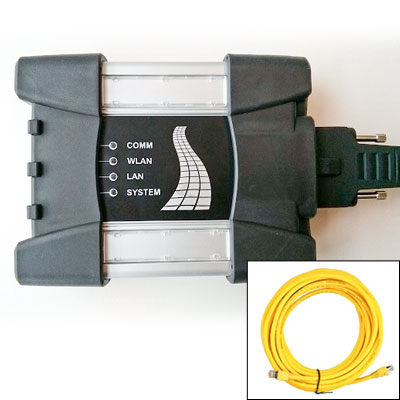
Hardware
The family guide identifies the Next A diagnostic unit and OBD cable, Next B MOST adapter, Next C legacy vehicle adapter and Next D motorcycle adapter. BMW describes Next A as a protocol converter exchanging data between the tester and vehicle control devices. The guide also documents compatibility with legacy ICOM adapters.
Using and identifying it
Confirm the appropriate diagnostic socket, adapter, cable, software support and interface firmware for the job. A normal fault read and a vehicle programming session may have different requirements. BMW's AOS guide calls for an appropriate external power supply for programming and warns against a wireless link between PC and a J2534 pass-through tool.
The BMW hardware guide contains photographs of the components. Compare the family overview and the earlier A2.
Wi-Fi (WLAN) setup
The BMW-hosted ICOM Next hardware guide documents WLAN on ICOM Next A as an alternative to Ethernet and says the WLAN interface must be configured. Use the following ISTA workflow for supported ICOM A/A2/Next devices; screen labels and available bands can differ with software, firmware and hardware.
- Connect the ICOM to the vehicle and to the PC or workshop network by Ethernet for initial configuration. The BMW ISPI manual says the ICOM must be connected to a vehicle and on the same network as the configuration computer. Ask the workshop network administrator for the WLAN settings.
- In ISTA, open Operations > Connection manager, select the ICOM and choose Configure vehicle interface.
- Under Device Configuration, confirm Mode is ISPI Next when using the ISPI Next workflow, then save the change.
- Open WLAN Settings. Enter the workshop network’s SSID and security credentials, and choose a mode/band supported by both the ICOM and access point. The Release 1503 ISPI manual lists 802.11n at 2.4 GHz or 5 GHz; use the options shown by the actual device.
- Save the WLAN settings, then choose Exit configuration. The ICOM reboots to apply them; the manual says it should reappear in the connection manager after about one minute.
Check the WLAN LED: on ICOM Next A, green indicates infrastructure WLAN, yellow indicates ad-hoc, and off indicates no WLAN communication. The ISPI manual also warns that an access-point session timeout can interrupt extended operations; have the network administrator disable that timeout for the ICOM network.
Scope: the ISTA path above follows BMW’s documented ISPI workflow. Some third-party guides instead use the ICOM browser configuration page and quote particular addresses or settings. Treat those as model/firmware-specific and confirm the actual interface details for your unit; do not copy sample SSIDs or passwords.
Sources
Curated reference notes. Applicability follows the cited sources; hardware testing by this wiki is not implied.
- BMW ICOM Next hardware family user guide. BMW-hosted ACTIA I+ME hardware family user guide; components, connections, WLAN operation and legacy adapter compatibility. Source revision Guide version 1.00, 2015, especially printed pages 8–9, 11–13 and 26; accessed 2026-11-10.
- BMW Group Techinfo website and AOS user guide. BMW of North America; AOS, ISTA, ICOM, pass-through, connectors and programming preparation; regional requirements may vary. Source revision BMW Techinfo system requirements and user guide, 2022; accessed 2026-11-10.
- BMW Group ISPI Administrator Manual, Release 1503. BMW AG manual, mirrored by Scribd; ISTA configuration workflow and WLAN settings, especially pp. 76–78; accessed 2026-11-10.
- How to Connect WiFi with ICOM by WiFi Module. Independent vendor support walkthrough, 2023; alternate browser-based setup examples, which may be specific to its devices and firmware; accessed 2026-11-10.